
Quick answer: WAVLINK sells DisplayLink workarounds for laptops that won’t do screens. The dual-HDMI 4K60 adapter ($57.59, 3,385 ratings) turns one USB-C port into two independent monitors — 1440p restored, old Zenbooks extended, Macs after DisplayLink Manager. The 3-monitor dock ($199.86, 3,168 ratings) carries its own GPU: the remote worker whose laptop sat at 98% CPU now runs three monitors with the lid closed. The 4-bay 10Gbps enclosure ($121.99 with 20% coupon, 961 ratings) gives four SATA drives separate controllers and per-drive power switches — JBOD, not RAID. Buy the screens your laptop refuses, not the port count.
The three-box lineup
The US feed runs 44 listings — docks, adapters, ethernet gear and enclosures. These three are the brand’s deepest review pool, its desk flagship, and its storage workhorse.

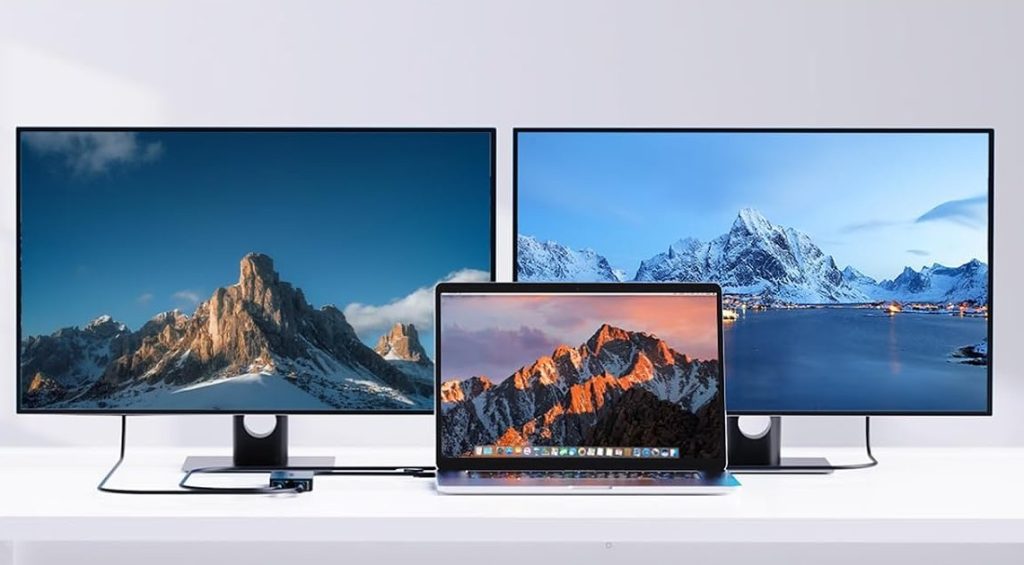
WAVLINK USB-C to Dual HDMI 4K@60Hz DisplayLink Adapter
The brand’s deepest pool and the problem-solver: 4.4 over 3,385 ratings. This is the adapter for laptops that refuse more than one external monitor — M1/M2/M5 MacBooks with their one-screen limit, work laptops whose USB-C ports don’t do video, an old Zenbook whose graphics card caps at one display. The DisplayLink chip renders in software, so both monitors extend independently: ‘I thought it was going to extend one screen and duplicate the second one. Nope, it does extend to both.’ The M2 owner runs two monitors, one portrait one landscape — after installing DisplayLink Manager, which the pool insists is mandatory on Mac. The work-laptop owner whose HDMI capped at 1080p got his 1440p back. The honest floors, quoted below: a trader who bought and returned three over screen blackouts mid-trade, and a four-star that measured the second port at 1080p, not 2K.
- 'does extend to both' — 2017 Zenbook, two extra screens on a one-screen GPU
- 1440p restored — 1080p-capped work laptop, quoted
- DisplayLink Manager required — M2 owner’s plain instruction for Mac
- blackout 1★ floor — trader, three returns — quoted for balance
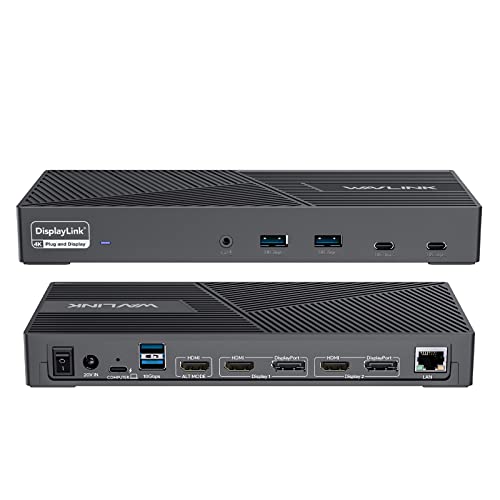
WAVLINK USB-C Docking Station, 3 Monitors 4K@60Hz
The desk command center: 4.2 over 3,168 ratings, three external monitors plus power, Ethernet, audio and a spread of USB ports — and a DisplayLink GPU that does the rendering the laptop can’t. The remote worker’s four-star is the thesis: two monitors, 98% CPU and capped RAM, HDMI splitters abhorrent — ‘I needed to release the laptop’s video card load and found this docking station with its own GPU. It works.’ The M2 Air owner runs three external monitors from one cable. The dual-platform owner is blunt: PC genuinely plug-and-play, Mac needs the driver — ‘The problem isn’t the dock. The problem is macOS.’ The researcher compared Wavlink against iVanky, Sateshi, OWC and Plugable and chose this at the $200 point. Honest floors: the dock ‘does get pretty warm’ — don’t park it next to anything meltable — and a one-star with months of random multi-monitor blanking and slow support. $0 commission for us this month, ranked on evidence.
- 'its own GPU. It works.' — 98%-CPU laptop freed, three full monitors
- beat iVanky/OWC/Plugable — the comparison shopper’s research trail
- runs warm — five-star’s own heat warning, quoted
- 1★ blanking floor — random dropouts + support runaround

WAVLINK 4-Bay Hard Drive Enclosure, 10Gbps USB-C
The storage play: 4.3 over 961 ratings, four 3.5”/2.5” SATA bays on a 10Gbps USB-C link, with a 20% coupon on top of a $209.99 list. What earns the rating: a separate controller per drive — ‘no bandwidth sharing’ — per-drive front power switches (an HDD owner powers up only when he needs the video archive, then leans over and clicks one drive on), aluminum shell, fans that only spin when hot. The cross-platform owner ran four 6TB drives on Mac Studio, a Windows laptop and Linux with zero connection problems. The honest floors, quoted below: no hardware RAID — it’s JBOD, and you RAID in software — no drive trays (torx screws, and 2.5” drives need a caddy you buy separately), plastic caddies inside an aluminum shell, and audible fans that the M2 owner says you’ll ‘eventually tune out.’
- no bandwidth sharing — separate controller per drive, quoted
- per-drive power switches — HDD archive you click awake on demand
- Mac/Windows/Linux tested — 4x 6TB, zero connection problems
- JBOD not RAID — software RAID on your OS — plus trays sold apart
Which WAVLINK, which desk
Adapter, dock, or enclosure — the bottleneck decides the box.
The second screen — Adapter ($57.59)
One USB-C port, two more monitors: DisplayLink does what the laptop’s GPU refuses — Macs need the Manager app.
The whole desk — Dock ($199.86)
Three monitors, Ethernet, power, one cable — its own GPU un-caps the CPU. Mind the warmth and the blanking floor.
The archive — 4-Bay ($121.99)
Four SATA drives, per-drive switches, 10Gb link — JBOD by design, RAID is your OS’s job.
Side by side
Prices, ratings and rating counts from the brand’s affiliate feed at time of writing.
| Dual-HDMI Adapter | 3-Monitor Dock | 4-Bay Enclosure | |
|---|---|---|---|
| Price | $57.59 | $199.86 | $121.99, was $209.99 (20% coupon) |
| Rating history | 4.4 · 3,385 | 4.2 · 3,168 | 4.3 · 961 |
| Solves | 2 extra monitors over USB-C | 3 monitors + full desk | 4 SATA drives, 10Gbps |
| Headline case | 1440p restored on a capped laptop | 98% CPU freed by dock GPU | Per-drive switches, no bandwidth sharing |
| Documented floor | 2K port = 1080p; blackout 1★ | Runs warm; multi-screen blanking 1★ | JBOD only; torx trays |
| October conversions | $0 — ranked on evidence | $0 | $0 |
Not the right pick if… the screens are mission-critical. A trader bought and returned three adapters over blackouts mid-trade; a dock owner watched three monitors blank one-by-one for months while support passed him along. DisplayLink works for thousands — but day-trade or surgery-room setups should test hard inside the return window, not after.
Not the right pick if… you expect plug-and-play on a Mac. The pool is unanimous: PC is genuinely plug-and-play; macOS needs the DisplayLink Manager driver before the screens light up. ‘The problem isn’t the dock. The problem is macOS.’ If driver installs are a dealbreaker, budget for frustration.
Not the right pick if… you want hardware RAID or tool-free bays. The 4-bay enclosure is JBOD by design — the cross-platform owner manages RAID in software — and drives mount on fixed holders with torx screws, no trays. It’s a workhorse enclosure, not a hot-swap server.
Not the right pick if… you park electronics next to meltable things. The dock’s own five-star says it ‘does get pretty warm’; the enclosure’s fans are audible under load. Both are normal for the category — neither belongs under a curtain or against a notebook.
What verified buyers say
Seventeen verified Amazon reviews, paraphrased and attributed — the Zenbook rescuer, the 1440p restorer, the DisplayLink Manager instructor, the big-screen Windows builder, the port measurer, the three-time returner, the CPU-freed remote worker, the dual-platform power user, the five-brand shopper, the thermometer watcher, the blanking-floor owner, the single-cable desk builder, the video archivist, the bandwidth auditor, the triple-OS tester, the materials realist, and the assembly-time realist.
The legacy-laptop case. An aging Asus Zenbook Flip with one HDMI and a graphics card that supports a single external monitor. His expectation: one extended screen and one duplicated. Reality: ‘Nope, it does extend to both of the monitors.’ Laptop screen plus two independent displays, ‘super easy to install as well.’
The work-issued-laptop case, paraphrased with flavor intact. New work laptop: one HDMI capped at 1080p, USB-C and USB-A ports with no display output — ‘I was reduced to a plebe, only one extra monitor.’ This adapter gave him two external monitors over USB and put them back at native 1440p. ‘It is better [than the old dongle].’
The Mac case, stated plainly. Two monitors, one portrait and one landscape, off a MacBook Air M2. ‘You will need to install DisplayLink Manager app for the second monitor to be used.’ The pool’s Mac instruction in one line.
The Windows case. Out of the box, driver downloaded, Windows 11 on one monitor, then the adapter, then both, then a smaller third — ‘Two of the monitors are 42 inches… It works great. I’m just happier than can be.’ He spent 12 hours fighting the setup before this solved it in minutes.
The honest measurement. Two 24-inch 1920×1200 monitors: the 4K port ‘recognizes the full monitor and looks sharp,’ but the second port capped at 1080p, so he left that port out and used the laptop’s own HDMI instead. With that setup: ‘no lag, no dropped frames, and no flickering.’ Read the port specs before planning your layout.
The one-star floor, quoted for balance. A Lenovo laptop used for trading on two monitors: ‘screens black out for a few seconds then flash back, which is terrible when I’m in the middle of a trade and I need to execute.’ One unit failed after a year sitting unused. Mission-critical setups should buy from a retailer with a return window and test hard.
The thesis review. Remote work on modest laptops, two monitors, HDMI splitters with abhorrent lag, IT restores twice, still 98% CPU. ‘Finally figured out I needed to release the laptop’s video card load and found this docking station with its own GPU. It works. I have 3 full blown monitors working, laptop closed.’
The dual-platform review. Lenovo ThinkPad: ‘genuinely plug-and-play.’ MacBook: audio and USB worked, screens didn’t — until the DisplayLink driver. ‘The problem isn’t the dock. The problem is macOS.’ If you’re cool updating your own drivers, he calls it the perfect dock for PC and Mac: 4K at 60Hz, up to four screens, 10Gb per port.
The research trail. For a MacBook Pro M1 Pro he weighed extend mode, laptop charging, port mix and 1GbE at the $200 point — and chose this after comparing four rivals. DisplayLink driver required, which he considers perfectly fine. The comparison-shopper’s evidence that the pick isn’t accidental.
The honest five-star. Slim design, better cord management, works with a Surface Pro, three monitors zero issues. ‘My only concern is the docking station does get pretty warm. Do not place it near anything that would possibly melt.’
The one-star floor. Three monitors work, then blank randomly — one, then the next, then the next — and whatever was on them lands on one screen when it recovers. Support cycles through data-collection tools and handoffs without a resolve. The failure mode to know before you build a three-monitor career on one dock.
The M1 case, engineered. M1 MacBook Air plus a 2-HDMI dock only mirrors — an M1 limitation that requires a DisplayLink solution. So he stacked this onto his Anker dock: one USB connector to the laptop, and ‘the user just connects 1 usb connector — gets 3 independent displays (recognized by Mac OS) and all other peripherals. Easy Peasy!’
The storage-life review. Video files too big for the desktop SSDs; four drives — HDDs and SSDs in the same housing — and individual switches mean the spinning drives stay off until needed. ‘I simply lean over and turn on the unit, and it boots up quickly.’ Solid build, easy connect, external power, daisy-chain port.
The spec review, quoted. ‘Unlike some of the others, it has separate controller cards for each drive. Separate controllers = no bandwidth sharing.’ Incredible read and write speed, fans only come on when hot. His asides: 2.5” drives need a separately-bought caddy (‘So what. Read what’s included’), and use the included USB cord or ‘your speed will suffer.’
The cross-platform review. Four 6TB drives, tested against Mac Studio, a Windows laptop and a Linux system — all three recognized the drives with fast, responsive access. His honest label notes: no built-in hardware RAID (‘I created and manage the RAID through software on my Mac’), and the fans are audible but low and not distracting.
The materials review. The outer shell is aluminum — premium look and feel — and the front-panel switches are satisfying and clicky; the internal drive caddies are plastic, a stark contrast but not flimsy. Straightforward multi-drive attached storage without RAID complexity. ‘A solid value.’
The three-star floor, quoted. 10Gb USB-C, daisy-chaining, front-panel switches and indicators, metal case with legs that double as handles — but no drive trays: fixed holders, one pre-mounted with torx screws, and you’ll want your own screwdriver. Know the assembly before it arrives.
Three desks these were made for
The one-monitor work laptop
1080p HDMI, video-less USB-C, 98% CPU — the adapter extends two screens, the dock’s GPU un-caps the machine.
The single-cable Mac desk
One USB-C into an M-series MacBook: three independent displays, keyboard, mouse, Ethernet and power. DisplayLink Manager first.
The quiet HDD archive
Video too big for SSDs: four drives sleeping until you lean over and click one awake — no bandwidth sharing when they spin.
FAQ
Why does this need a DisplayLink driver when other adapters don't?
Because it isn’t passing the laptop’s own video out — its DisplayLink chip renders the extra screens itself. That’s why it works on machines that officially support one external monitor: M1–M5 MacBooks, work laptops whose USB-C ports carry data only, an old Zenbook whose GPU caps at one display. The trade: macOS needs DisplayLink Manager installed before the second screen appears (‘You will need to install DisplayLink Manager app’), and Windows usually just works. PC plug-and-play, Mac driver-first — the pool’s wording.
Will both HDMI ports on the $57.59 adapter do 4K?
Read the port labels before planning the layout. The four-star who measured it: the 4K port ‘recognizes the full monitor and looks sharp,’ while the second port topped out at 1080p for his 1920×1200 monitors — so he used the laptop’s own HDMI for the second screen instead. Port asymmetry is common on dual-HDMI adapters; the pool’s happy owners plan around it.
Is the dock really better than an HDMI splitter?
The four-star’s experience is the cleanest answer: HDMI splitters gave her abhorrent lag, 98% CPU and capped RAM — because splitters mirror the laptop’s own output. This dock renders with its own GPU, so the laptop’s video load drops and three full monitors run with the lid closed. Different mechanism, different result — that’s what the $200 buys.
Does the 4-bay enclosure do RAID?
Not in hardware — and the pool says so clearly. It’s four independent drives on a 10Gbps link (JBOD): the Mac owner runs software RAID on his machine; the three-star notes fixed drive holders with torx screws instead of trays. What you do get per the pool: separate controllers per drive (‘no bandwidth sharing’), per-drive power switches, and aluminum construction with fans that only run hot.
Do Wavlink monitors ever blank out?
A small but real floor, quoted straight. The trader: ‘screens black out for a few seconds then flash back’ — three returns. The dock owner: monitors blank one-by-one over months with slow, hand-off-heavy support. Thousands of five-stars never see it, but if your screens must never blink, test the unit hard in week one while the return window is open.
How was this page put together?
We are an independent review site. Specs and prices come from the brand’s official affiliate feed at time of writing; ratings are the public Amazon rating history of each listing. This month our tracked conversions for WAVLINK belong to a listing not present in the brand’s current feed — the three products here earn us $0 commission, so they are ranked on evidence, not payout. Every review above is paraphrased from verified Amazon customer reviews — the Zenbook rescuer, the 1440p restorer, the M2 Mac owner, the CPU-freed remote worker, the five-brand comparison shopper, the video archivist and the bandwidth auditor among them — attributed to the reviewer name shown and the month posted. If you buy through our links we may earn a commission; it does not change which reviews we quote or what they say.