
Let's be real for a second. How many hours this week did you lose typing out long emails that still got misunderstood? Or sitting in a Zoom call that could have been a 2-minute video? I know I have. Last Tuesday, I spent 45 minutes trying to explain a bug fix to my developer via Slack. Forty-five minutes! We went back and forth with screenshots, arrows drawn in MS Paint, and confused emojis.
That was the breaking point. I knew there had to be a better way to communicate visually without needing a degree in Hollywood editing. That's when I dove deep into the TechSmith ecosystem, specifically their power duo: Camtasia and Snagit.
If you are a content creator, a team lead, an educator, or just someone who wants to reclaim their day, stick around. I'm going to break down exactly how these two tools work, share some real-life stories of how they saved my sanity, answer the questions you're probably asking, and help you decide which one (or both!) belongs in your toolkit.
Part 1: Snagit – The "Skip the Meeting" Hero
Let's start with the lightweight champion: Snagit. If Camtasia is the movie studio, Snagit is the Swiss Army knife you keep in your pocket at all times.
The Scenario: Imagine you need to show your boss how to approve an invoice in your new software. The old way? Write a 10-step email, take 5 different screenshots, paste them into Word, draw red circles, and hope they don't get lost in attachment hell.
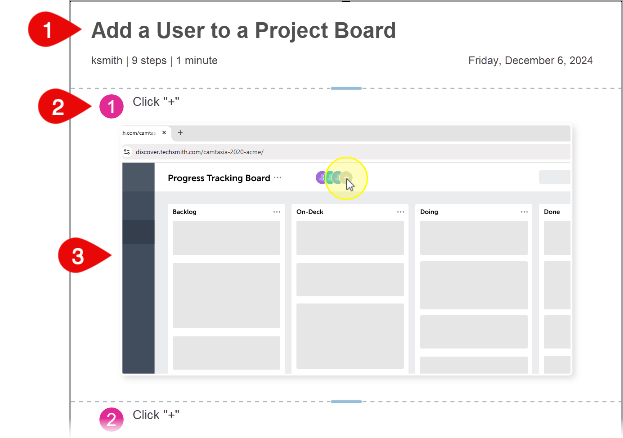
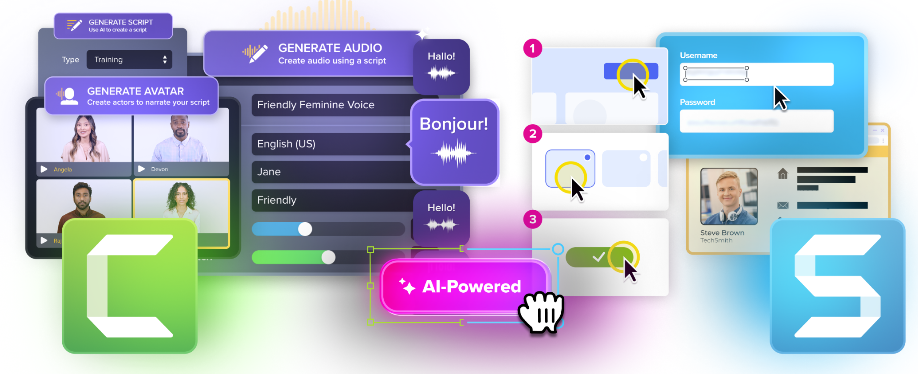
The Snagit Way: I hit my hotkey. I drag a box around the screen. Snagit instantly captures it. But here is the magic: I click the "Steps" tool. As I click through the process, Snagit automatically numbers my clicks and generates a step-by-step guide. I add a quick arrow, blur out a sensitive client name with one click (thanks, AI!), and hit "Share." I paste a link in Slack. Done in 45 seconds. My boss replies, "Got it!" No meeting needed.
Why Snagit Feels Like Magic
Snagit isn't just a screenshot tool; it's a communication accelerator. The interface is incredibly intuitive. You don't feel like you are "editing"; you feel like you are just talking faster.
- Scrolling Capture: Need to capture a whole webpage or a massive Excel sheet? Snagit stitches it together perfectly. No more "Part 1, Part 2, Part 3" screenshots.
- AI Smart Redact: Worried about sharing passwords or credit card numbers in a screenshot? Snagit's AI detects sensitive text and blurs it instantly. It's a lifesaver for HR and IT teams.
- Video to GIF: Sometimes a video is too heavy for email. Snagit lets you record a short clip and instantly convert it to a lightweight GIF. Perfect for quick feedback on designs.
- The Library: Every capture you make is saved in a searchable library. You can even search for text inside your images. Lost that screenshot from three months ago? Just type what was written on it, and boom, it's there.
- Panoramic Capture: Capture wide images that don't fit on your screen by simply moving your mouse horizontally.
Snagit Pricing Plans
TechSmith offers flexible subscription plans for Snagit. Here is the breakdown:
Snagit Standard Approx. $39.00 / year (billed annually)Perfect for individuals. Includes all core capture and editing features, scrolling capture, and basic video recording. Great value for freelancers and solo professionals.
Snagit Create Approx. $88.99 / year (billed annually)Adds access to 100M+ premium assets (templates, icons, backgrounds, music). Ideal if you want your screenshots and videos to look branded and pro without hiring a designer.
Snagit Pro Approx. $188.98 / year (billed annually)The ultimate package. Includes everything in Create PLUS unlimited sharing via Screencast (cloud hosting), advanced AI features (Smart Redact, Text Grab), and priority support. Best for power users, teams, and anyone who shares content externally.
Frequently Asked Questions About Snagit
A: Absolutely. While built-in tools are okay for basic snaps, Snagit offers scrolling capture, video recording, instant annotation, templates, and a searchable library. It saves hours of manual work every month.
A: Yes! Snagit can record your screen, webcam, and microphone simultaneously. It's perfect for quick updates under 5 minutes. For longer, more complex edits, you'd upgrade to Camtasia.
A: Yes, Snagit is fully compatible with both Windows 10/11 and macOS (including Apple Silicon M1/M2/M3 chips).
A: You retain access to the version of the software available at the time of your last payment, but you won't receive future updates or new AI features.
Part 2: Camtasia – Your Personal Video Production Studio
Okay, so Snagit handles the quick stuff. But what if you need to create a full-blown training course, a software demo for your landing page, or a YouTube tutorial? That is where Camtasia shines.
I used to think video editing required Adobe Premiere and a steep learning curve. Camtasia proved me wrong. It is designed specifically for screen-first video. It understands that you aren't filming a movie; you are recording a computer screen.
The Scenario: I needed to record a 10-minute tutorial on how to use our new CRM. In the past, I would record, realize I stumbled over my words at minute 4, and have to re-record the whole thing. Or I'd spend hours trying to sync my webcam footage with my screen.
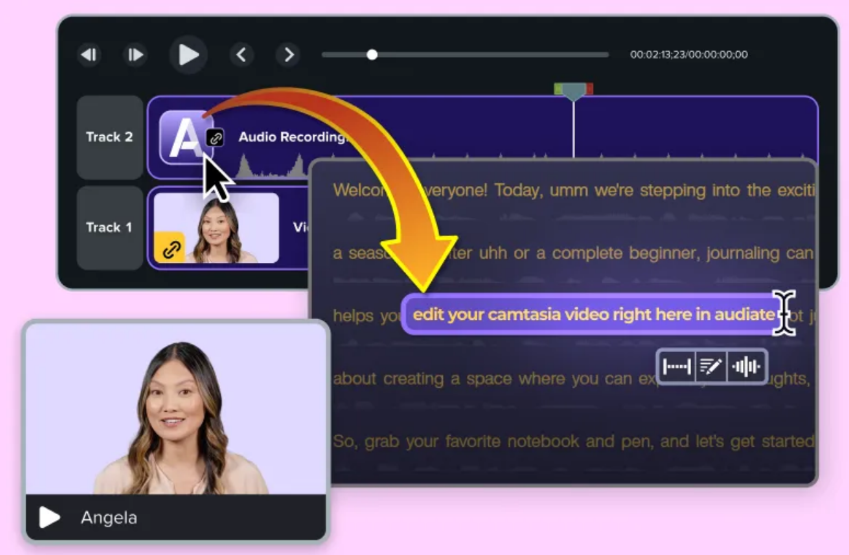
The Camtasia Way: I hit record. Camtasia records my screen, my webcam, my mic, and my system audio on separate tracks. When I messed up a sentence, I didn't re-record. I used the AI Text-Based Editing. Camtasia transcribed my video into text. I literally highlighted the wrong sentence in the text transcript and hit "delete." The video cut itself. Magic? Maybe. Efficient? Absolutely.
The AI Revolution in Camtasia
TechSmith has gone all-in on AI, and it changes the game for solo creators.
- AI Avatars: Camera shy? No problem. You can generate a realistic AI presenter to narrate your video. You just type the script, choose an avatar, and it lip-syncs perfectly. It's uncanny how good it looks.
- AI Voice Generation: Don't want to use your own voice? Choose from over 200+ AI voices in multiple languages. Great for scaling content without hiring voice actors.
- Background Noise Removal: Recorded near a construction site or a loud fan? One click removes the noise while keeping your voice crisp.
- Smart Focus & Cursor Effects: Camtasia automatically smooths out your mouse movements and can zoom in on where you click, so viewers never lose track of what you're doing.
- Interactive Quizzes: Add quizzes directly into your videos to test viewer knowledge. Perfect for corporate training and education.
Camtasia Pricing Plans
Camtasia uses a tiered subscription model based on the AI features you need:
Camtasia Starter Approx. $39.00 / year (billed annually)Includes the editor and basic recording. Exports have a watermark. Good for testing the waters, but not for professional use.
Camtasia Essentials Approx. $179.88 / year (billed annually)Removes the watermark. Gives you the full editor, multi-track recording, basic effects, and standard assets. The sweet spot for most educators and trainers who don't need heavy AI.
Camtasia Create Approx. $249.00 / year (billed annually)Unlocks the AI power. Includes AI Script generation, AI Voices (Text-to-Speech), Audio cleanup (noise removal), and Text-based editing. If you want to save time on recording and editing, this is the one.
Camtasia Pro Approx. $349.00 / year (billed annually)The full enchilada. Includes AI Avatars, Translation/Dubbing into 7+ languages, 100M+ Premium Assets, Unlimited Sharing via Screencast, and Advanced Analytics. Perfect for enterprises, serious creators, and those targeting global audiences.
Frequently Asked Questions About Camtasia
A: Not at all. Camtasia is famous for its drag-and-drop interface. If you can use PowerPoint, you can use Camtasia. Plus, they have hundreds of free tutorials.
A: Yes, a single subscription usually covers both platforms (check specific plan details), allowing you to switch between devices seamlessly.
A: Camtasia supports all major formats including MP4, MOV, AVI, WMV, and even GIFs. You can also export directly to YouTube, Vimeo, Google Drive, and Screencast.
A: Camtasia is optimized well, but for AI features and 4K editing, a modern processor (Intel i7/Ryzen 7 or Apple M1+) and 16GB of RAM are recommended for smooth performance.
A: Yes! This is the killer feature. You can send Snagit captures directly to Camtasia with one click, making your workflow incredibly fast.
Real Talk: Which One Do You Actually Need?
This is the question I get asked the most. "Can't I just use Camtasia for everything?" or "Is Snagit enough?"
Here is my honest take based on how I use them daily:
Choose Snagit If...
- You spend more than 2 hours a day in email or Slack/Teams.
- You need to create documentation, SOPs, or bug reports.
- You want to give quick visual feedback without scheduling a call.
- You need to capture scrolling webpages or simplify complex UI screenshots.
- Verdict: It pays for itself in the first week by saving you meeting time. It's the best ROI for communication.
Choose Camtasia If...
- You are creating online courses or paid tutorials.
- You need polished marketing videos for your website or social media.
- You want to leverage AI to create videos without showing your face or using your voice.
- You need to edit multiple audio/video tracks professionally.
- Verdict: It replaces expensive video editing software and speeds up production by 10x. Essential for creators.
The Power Combo: Why You Probably Want Both
Here is the secret sauce: They work together seamlessly.
I often start a project in Snagit. I'll capture a few screenshots, annotate them, and then send them directly to Camtasia to be part of a larger video intro. Or, I'll record a quick video in Snagit, realize it needs more polish, and open it instantly in Camtasia. The integration is so tight it feels like one super-app.
If you are serious about visual communication, getting the TechSmith Bundle (often available for teams or as a discounted combo) is the highest ROI investment you can make for your productivity.
Final Verdict: Is It Worth the Money?
In a world where attention spans are shorter than ever, text-heavy emails and confusing meetings are killing productivity. TechSmith isn't just selling software; they are selling clarity.
Snagit is the most affordable way to stop the "email ping-pong." For the price of a few coffees a month, you get a tool that makes you look like a pro communicator instantly. The ability to scroll-capture and auto-number steps alone is worth the subscription.
Camtasia democratizes video creation. It takes the fear out of editing. With the new AI features, you can produce content in an hour that used to take a full day. Whether you choose the Create plan for AI voices or the Pro plan for Avatars, the time savings alone justify the subscription cost. It's an investment that pays off with every video you publish.
My Recommendation: Start with the Snagit Free Trial to fix your daily communication headaches. Then, download the Camtasia Free Trial (watermarked) to see how easy it is to make your first video. Once you see how much time you save, upgrading will be a no-brainer.
Ready to Transform Your Workflow?
Don't let another week go by with misunderstood instructions and boring meetings. Join the millions of professionals (including the entire Fortune 500) who rely on TechSmith.
15-Day Free Trial • No Credit Card Required for Download
Free Trial Available • Watermark Removed on Upgrade